GraphQL
GraphQL is a modern API query language and runtime that allows clients to request exactly the data they need, making data fetching more efficient and flexible. Unlike traditional REST APIs, GraphQL uses a single endpoint, a strongly typed schema, and supports features like real-time updates, version-free evolution, and nested data queries. Its declarative approach enables streamlined communication between clients and servers, enhancing application performance and development agility.
Key Features
- Declarative Data Fetching: Request exactly the data you need.
- Single Endpoint: Interact with all resources through one endpoint.
- Strongly Typed Schema: Define clear, self-documenting contracts between client and server.
- Version-Free API: Evolve APIs without breaking changes.
Methods to Add GraphQL
You can add a GraphQL to your application through the following methods:
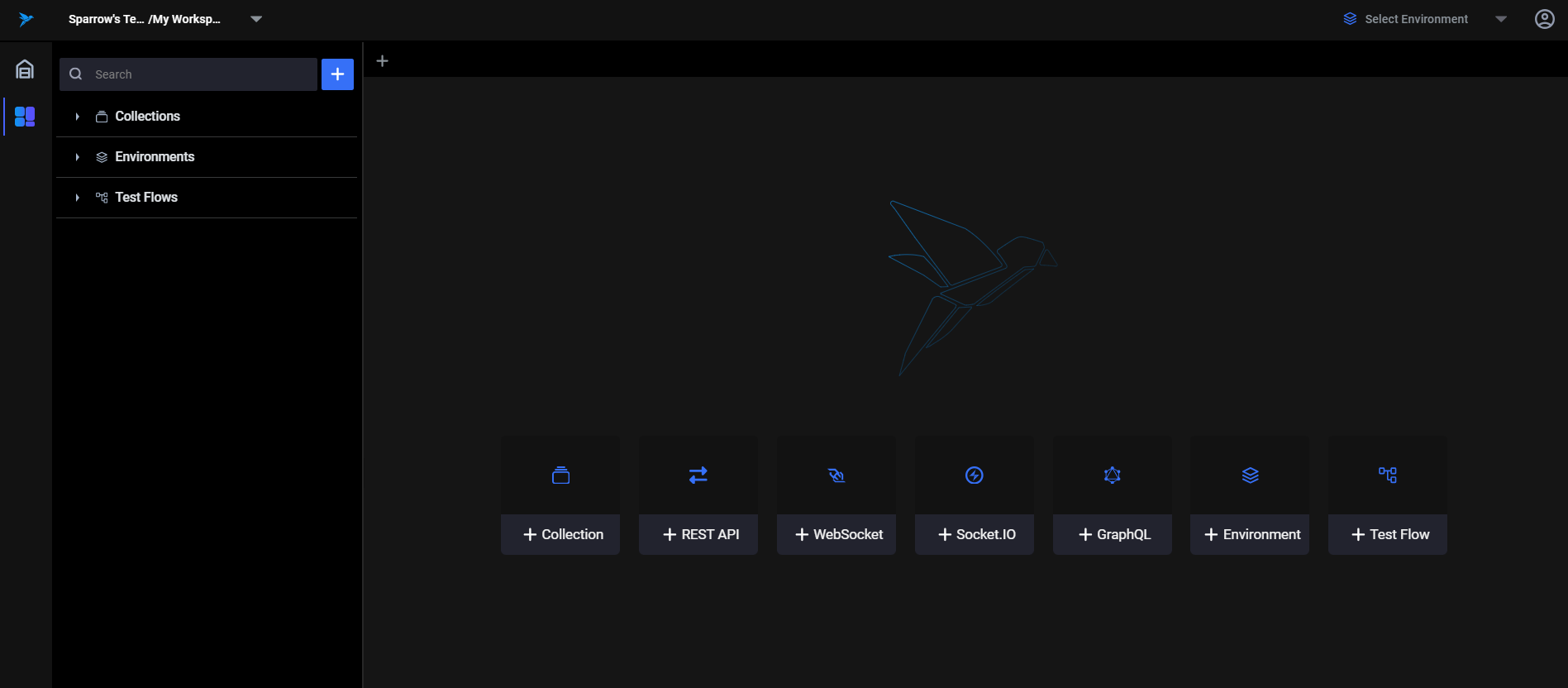
From Main Screen
- Access the main screen of the application.
- Click the "Add GraphQL" button for a quick setup.
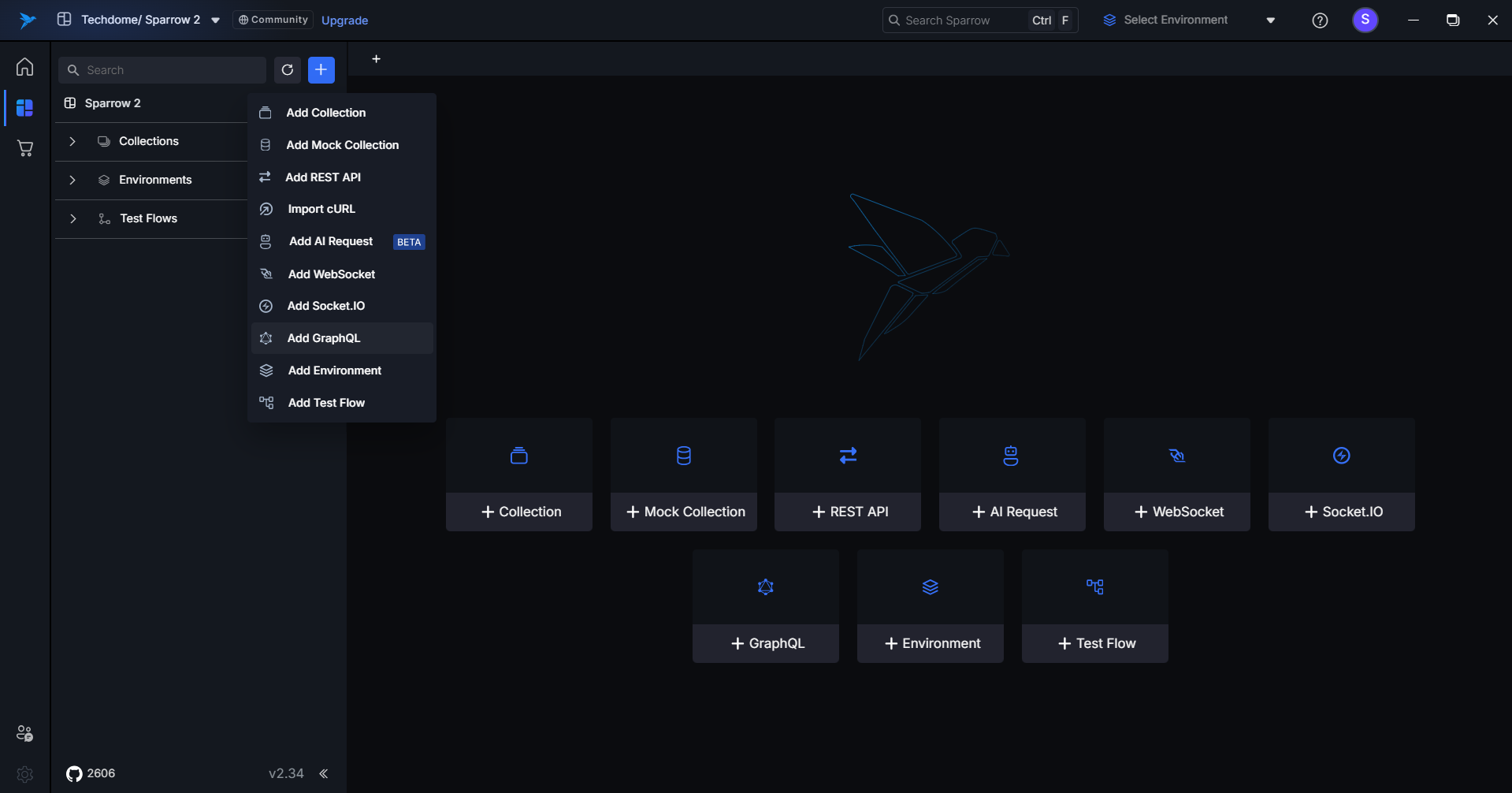
From the Left-Panel Section
- Open the application.
- Click the "+" icon on the left panel.
- Choose "Add GraphQL" from the dropdown.
From the Collection Section
- Open the application.
- Click the "Collection/Folder" option in the left panel.
- Click on the three dots and select "Add GraphQL."
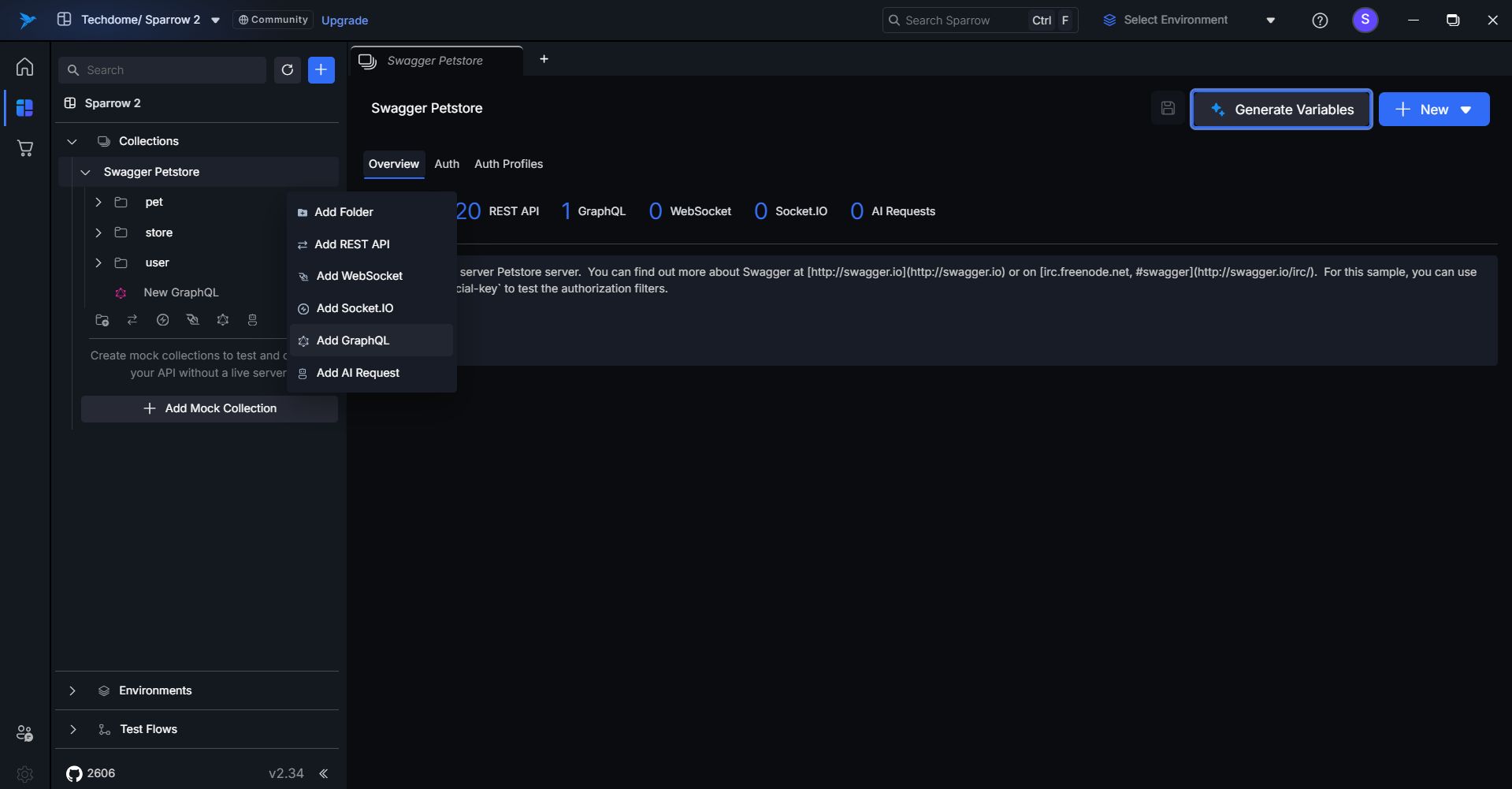
Using the GraphQL Icon in the Collection Section
- Access the left panel's "Collection" option.
- Click on the GraphQL icon to add a new connection.
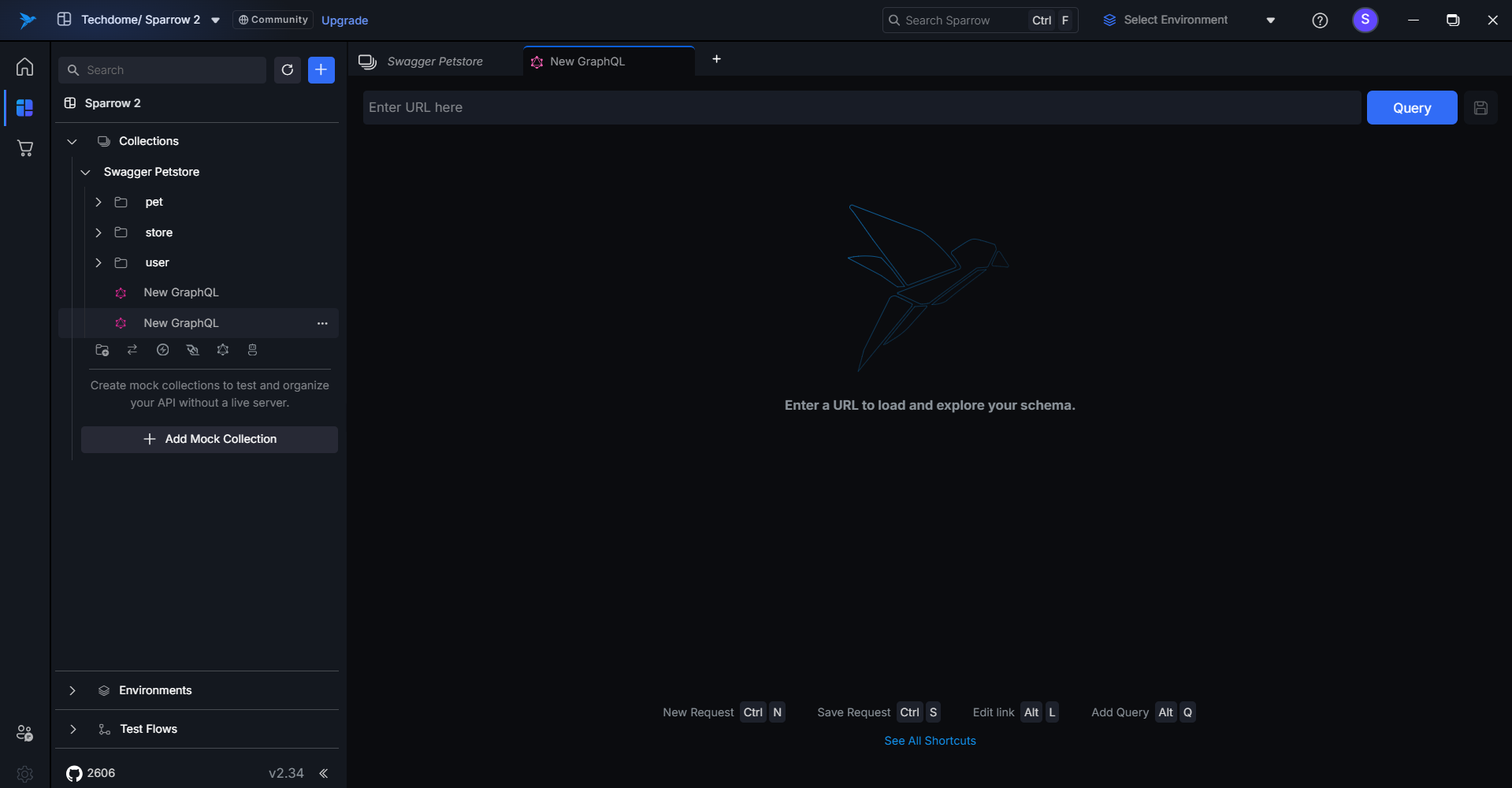
How to Connect to GraphQL
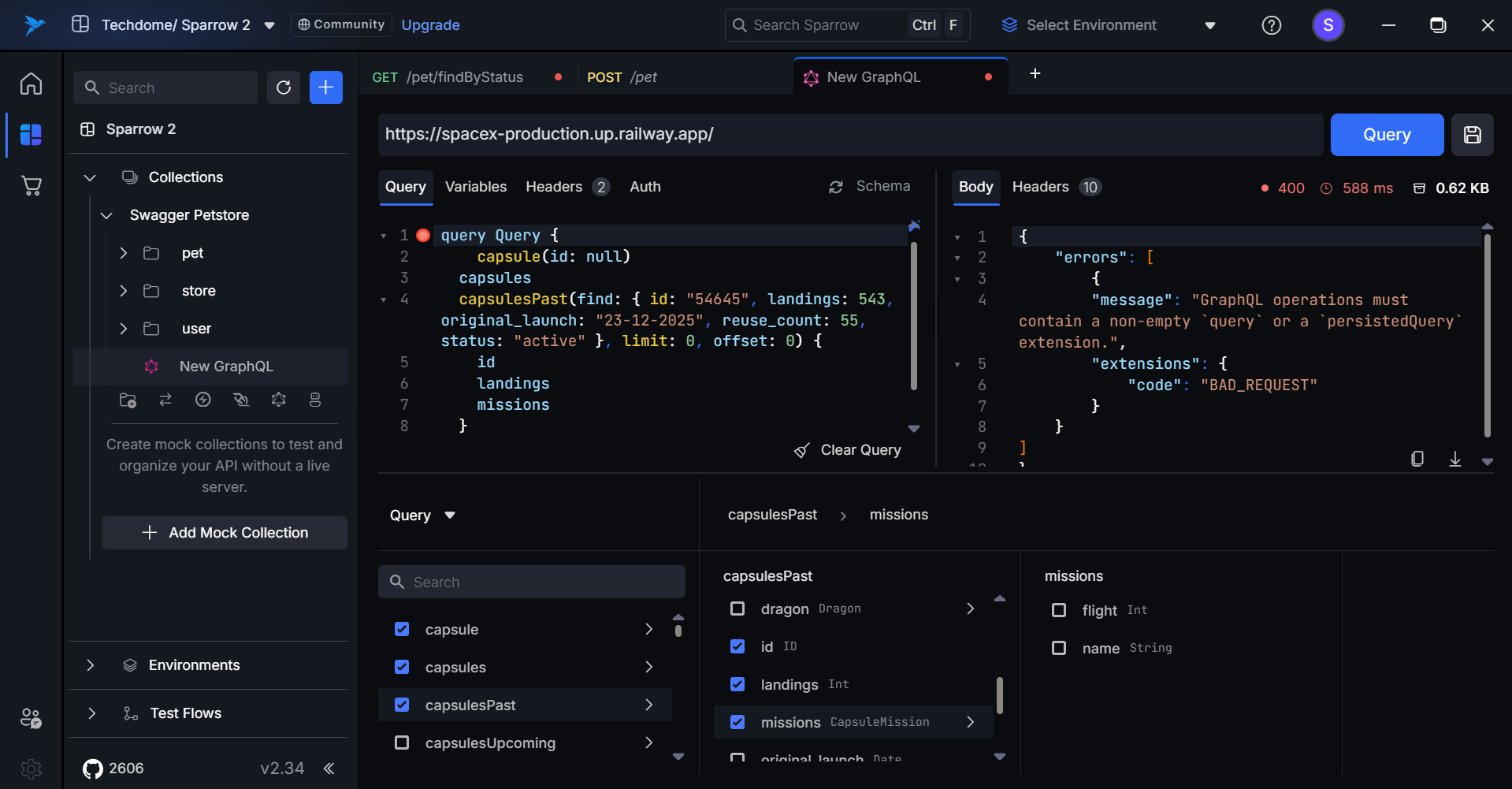
- Enter Connection Details: Input the GraphQL URL.
- Query Explorer: Once you enter the GraphQL URL, queries will be fetched automatically. You can select a query from the list, which will be displayed in the Query Editor section. Additionally, multiple queries can be selected simultaneously.
- Variables: Add variables manually as per the requirements.
- Connect: Click the "Query" button after entering all the details.
- Confirmation: A confirmation message will appear on the right side once the connection is successful.
- Response: The response will be generated at the RHS, including Body & Headers.
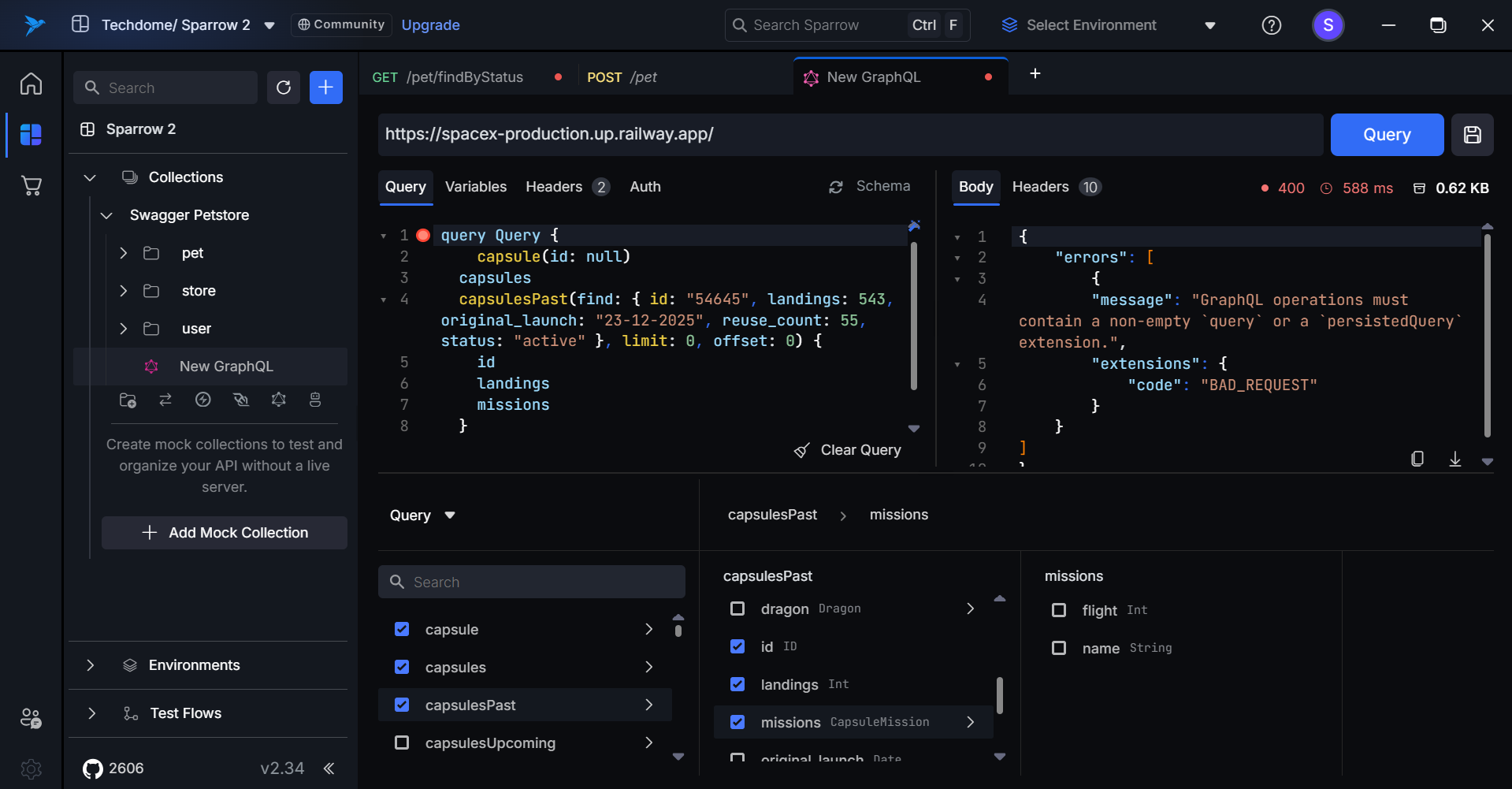
Using Copy, Download Options, Clear Query and Refresh Schema
- Copy Response: Use the "Copy" icon to copy the response; a confirmation message will appear.
- Download Response: Click the "Download" icon to save the response; choose your file location and confirm.
- Clear Query: Click on the "Clear Query" icon to clear the query input.
- Refresh Schema: Click on "Refresh Schema" icon to refresh the generated schema & update the schema as per the changes made.
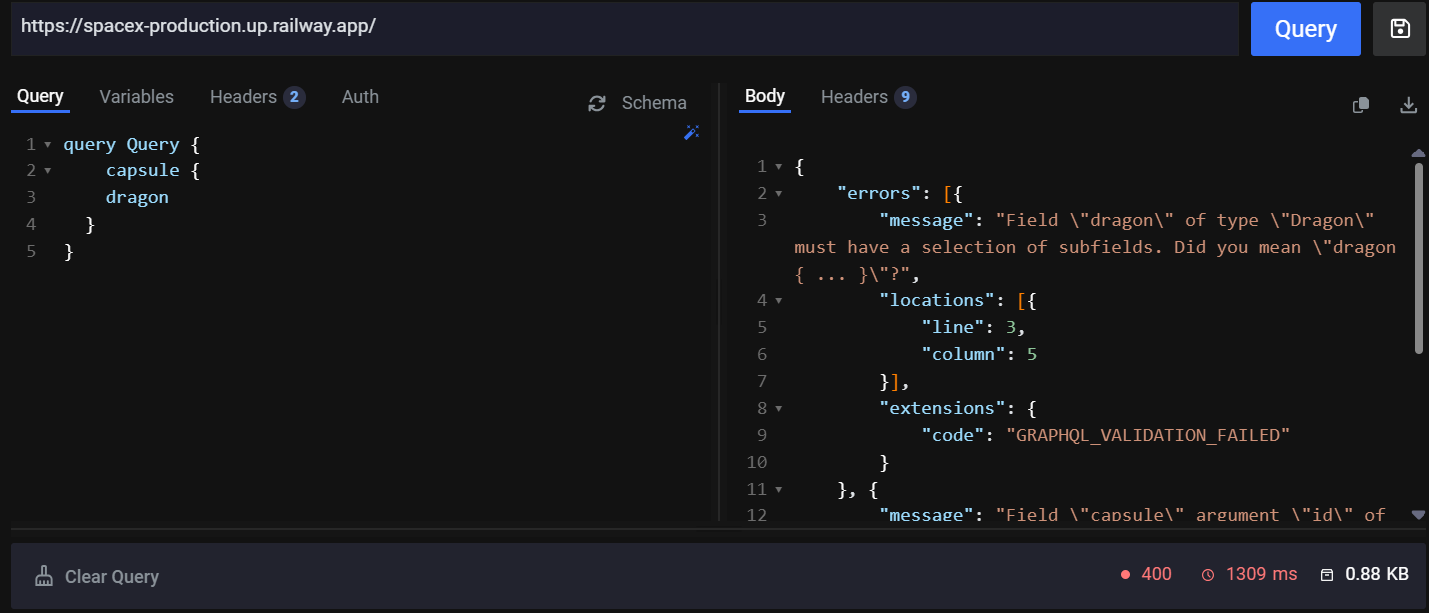
Saving GraphQL for Future Use
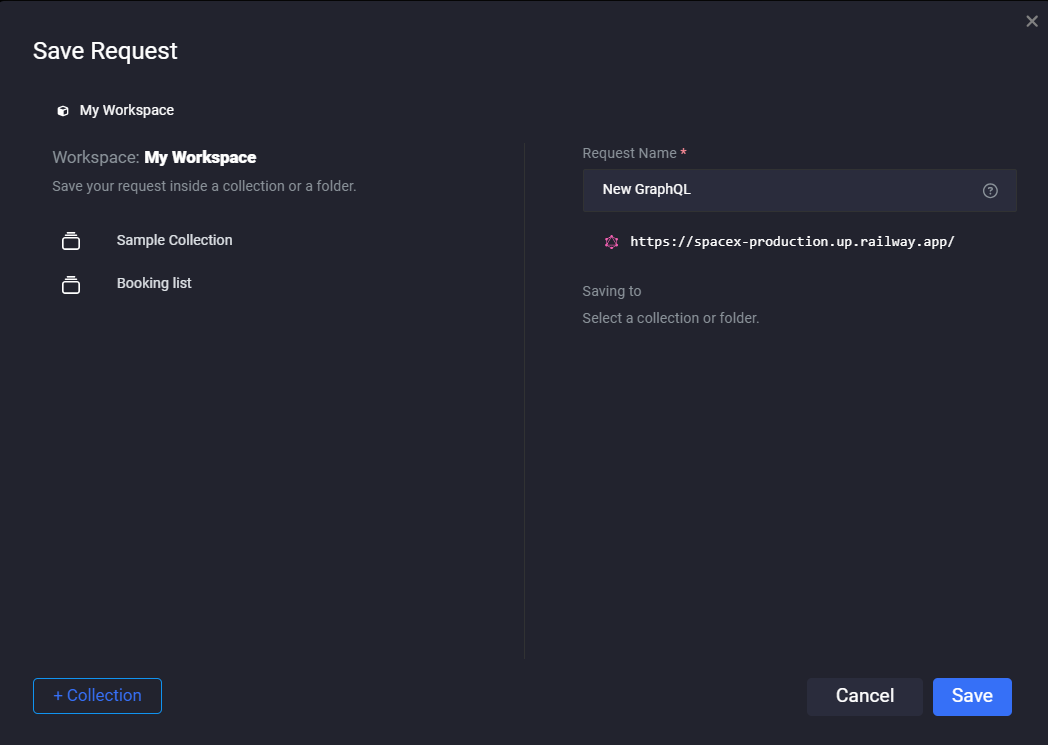
- Save Connection: After setting up, click "Save."
- Select Collection: Choose or create a collection to store the GraphQL connection.
- Choose Folder: Similarly, choose or create a folder.
- Confirm Save: Click "Save" to store the connection for future use.